

TL;DR — Quick Answer
You can connect Claude to your D&D campaign through MCP, the open standard that lets an AI assistant read and update outside data. In Tavern Scribe, every campaign has its own MCP address: open the campaign's Settings → Integrations → MCP (AI tools), copy the URL, paste it into Claude as a custom connector (or run one
claude mcp addcommand in Claude Code), and authorize it. From then on Claude can answer "what did we learn about the Duke?", list open quests, search your notes, and create NPCs, quests and locations straight into the campaign.
Want the overview of what the campaign workspace holds? See the features page. This post is the setup walkthrough.
What does connecting Claude actually give you?
It gives Claude a memory of your campaign that is as good as your campaign records. Claude on its own knows the rules of the game; it knows nothing about the goblin your rogue spared in session three. Once connected, it can read what Tavern Scribe already tracks for you: sessions and their recaps, the timeline, characters, quests, locations, factions and your notes.
In practice that means you can ask things like:
- "Summarize what the party knows about the Red Hand so far."
- "Which quests are still open, and who gave them?"
- "Find every note that mentions the lighthouse."
- "Draft three rumors the players could hear in Marwick, using NPCs we've already met."
- "Create a quest called The Salt Road Toll with a short description, and attach it to the Marwick location."
The first four are reads. The last one is a write, and yes, Claude can do it: the connector exposes create tools for characters, quests and locations, so prep you do in a chat lands in the campaign instead of in a chat log you'll never find again.
What is MCP, in one paragraph?
MCP stands for Model Context Protocol. It is an open standard, published at modelcontextprotocol.io, for giving an AI assistant a set of named tools it can call, such as "get the open quests" or "search the notes". The assistant decides when to use a tool, calls it, and gets structured data back. The important part for a DM is that the data stays in your campaign; Claude reads it when you ask and writes to it only through tools you authorized. Tavern Scribe runs an MCP server per campaign, so the address you connect is specific to that one campaign.
How do I get the connection URL?
- Open the campaign in Tavern Scribe.
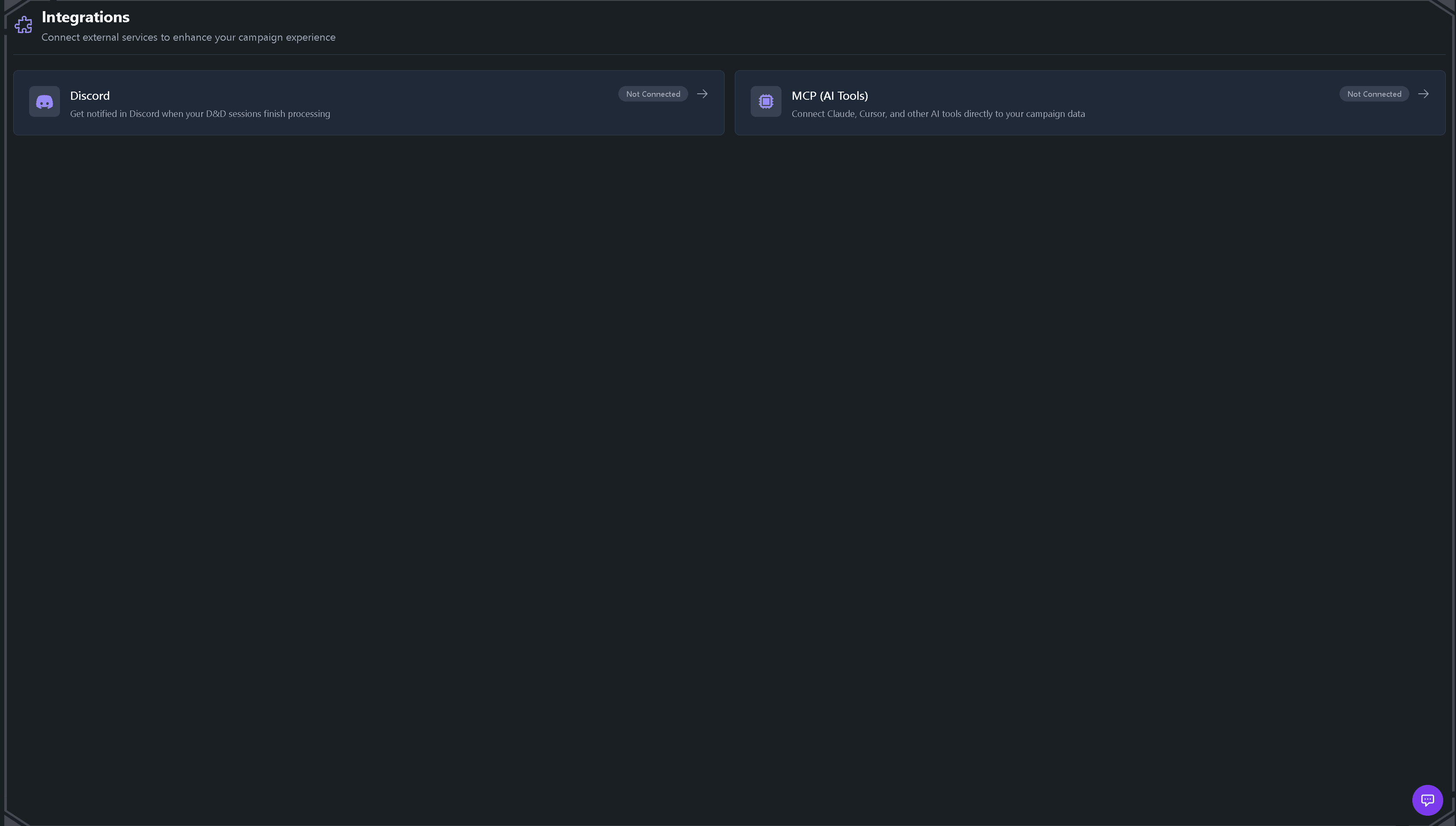
- Go to Settings → Integrations and find the MCP (AI tools) section.
- Copy the connection URL. It has the shape
https://api.tavernscribe.com/mcp/<your campaign id>.
Each campaign has its own URL. If you run two campaigns, you connect two servers and keep them apart.
How do I connect it in Claude (desktop or web)?
- In Claude, open Settings → Connectors and choose Add custom connector.
- Paste the campaign URL from the step above.
- Claude sends you to a Tavern Scribe consent page. Sign in if you aren't already, check which campaign it names, and click Authorize.
- Back in Claude, start a new chat and ask something only your campaign could answer. If Claude lists tools like
get_campaign_summary,get_questsorsearch_notes, you're connected.
The consent step is the whole security model: the connection is tied to your Tavern Scribe account and to that campaign, and it can be revoked at any time from the same MCP settings page.
How do I connect it in Claude Code?
If you prefer the terminal, the MCP settings page shows a ready-made command. It looks like this:
claude mcp add --transport http tavernscribe-my-campaign https://api.tavernscribe.com/mcp/<your campaign id>
Run it, then type /mcp inside Claude Code and pick Authenticate for the new server. The same consent page opens in your browser. This is the route to use if you want Claude Code to prep sessions while you're writing in your editor.
Is there a way to connect without the browser login?
Yes. The MCP settings page can generate an API key for the campaign. Tavern Scribe then shows you the Claude Code command with the key already included as a bearer header, and a config block for Claude Desktop's settings file. Treat that key like a password: anyone holding it can read the campaign. If a key leaks, revoke it from the same page and generate a new one.
Use the API-key route for tools that don't support the authorization flow, and the browser login for everything else.
What can Claude see, and what does it cost?
Permissions. The connector follows the same rules as the web app. A player who connects their own account sees what a player sees; a DM sees the DM's view. Hidden characters, DM-only notes and other campaigns are not reachable through the connector, and that rule was audited and tightened across every write tool in October.
Price. Reading campaign data through Claude is free. Tools that call an AI model inside Tavern Scribe, such as generating a portrait, narration audio or a map, charge their real provider cost in silver, the same metered currency the rest of the AI features use. Your first campaign starts with 100 free silver, and the campaign workspace itself is free, so connecting Claude and asking questions all evening costs nothing.
Other clients. The MCP (AI tools) section is written for Claude, but the server speaks standard MCP, so Cursor and other MCP-capable tools can connect with the same URL.
A small prep routine that works
Here is a made-up example of a prep session with the connector in place, written as prompts you can copy:
1. "Give me the campaign summary and the last session's recap."
2. "List open quests with who gave them and where."
3. "Search notes for 'Salt Road' and tell me what the party decided."
4. "Suggest two complications for next session that use existing NPCs."
5. "Create a location called 'The Toll House' near Marwick with this description: ..."
Steps 1–3 pull from the records Tavern Scribe already keeps, which is where the campaign memory comes from. If you record your sessions, those records write themselves; see how to summarize a D&D session from audio for the recording side, and session prep with campaign memory for how the recap, timeline and entity pages fit together. If you keep the campaign by hand, how to track a D&D campaign covers what's worth writing down so Claude has something to read.
FAQ
Does connecting Claude give it access to my whole account?
No. The connection is per campaign, and it is tied to the account that authorized it with that account's role in the campaign. Other campaigns on your account are not reachable through that URL.
Can my players connect too?
Yes. Each player can add the same campaign URL and authorize with their own account. They get the player view, so DM-only material stays hidden.
Does Claude write to the campaign without asking?
Claude only calls tools when it needs them for your request, and write tools exist for characters, quests, locations and notes. If you'd rather it only read, tell it so in the chat; and anything it creates shows up in the campaign where you can edit or delete it.
What if "Add custom connector" fails?
Check the URL is the full campaign address from the MCP settings page, including the campaign id, and that you authorized on the consent page that opened. If it still fails, generate an API key on the same page and use the Claude Code command it gives you.
Start free, your first campaign comes with 100 silver for the AI parts: create your campaign.
Drafted with AI by the Tavern Scribe team and reviewed by a person. Last reviewed 2026-11-07.
Tags: Claude And Mcp, Campaign Tracking, Session Prep, Dnd Tools
