

TL;DR — Quick Answer
To record a D&D session on Discord, add the Tavern Scribe Discord bot to your server from your campaign's settings, join your table's voice channel, and run
/record start. The bot records the channel and uploads the audio into your campaign automatically — no file to find afterward, no export step. From there it can feed straight into an AI session recap, or you can just keep the raw audio.
Looking for the full notetaking pipeline rather than just the recording step? See the AI notetaker for TTRPG sessions. This post is the Discord-specific setup.
What you need before you hit record
Three things: a Discord server your table already plays on, permission to add bots to that server (usually "Manage Server," which most DMs already have), and a Tavern Scribe campaign to connect it to. The bot is added per campaign, not per Discord account, so if you run two campaigns on the same server, each gets its own connection and its own recordings stay separate.
How do I add the Discord bot to my server?
- Open your campaign in Tavern Scribe and go to Settings → Discord Integration.
- Click to connect, which generates an invite link scoped to that campaign — the server you add the bot to becomes tied to that specific campaign, not to your account in general.
- Discord's own authorization screen shows you exactly what the bot is asking for: viewing the channel, connecting to voice, sending messages, reading message history, and using slash commands. It is not asking for admin access to your server — Discord's own permissions documentation lays out what each of those scopes actually allows.
- Approve it, and the integration page shows Connected once Discord confirms.
How do I actually start recording?
Join your table's voice channel like normal, then have anyone type /record start in a text channel the bot can see. The bot starts recording the voice channel, and when the session wraps, stopping is just as simple: run /record stop, or let the session end naturally if your table has auto-processing configured (more on that below). Either way, you don't manage a file — the recording goes straight into the campaign tied to that server.
What happens to the recording afterward?
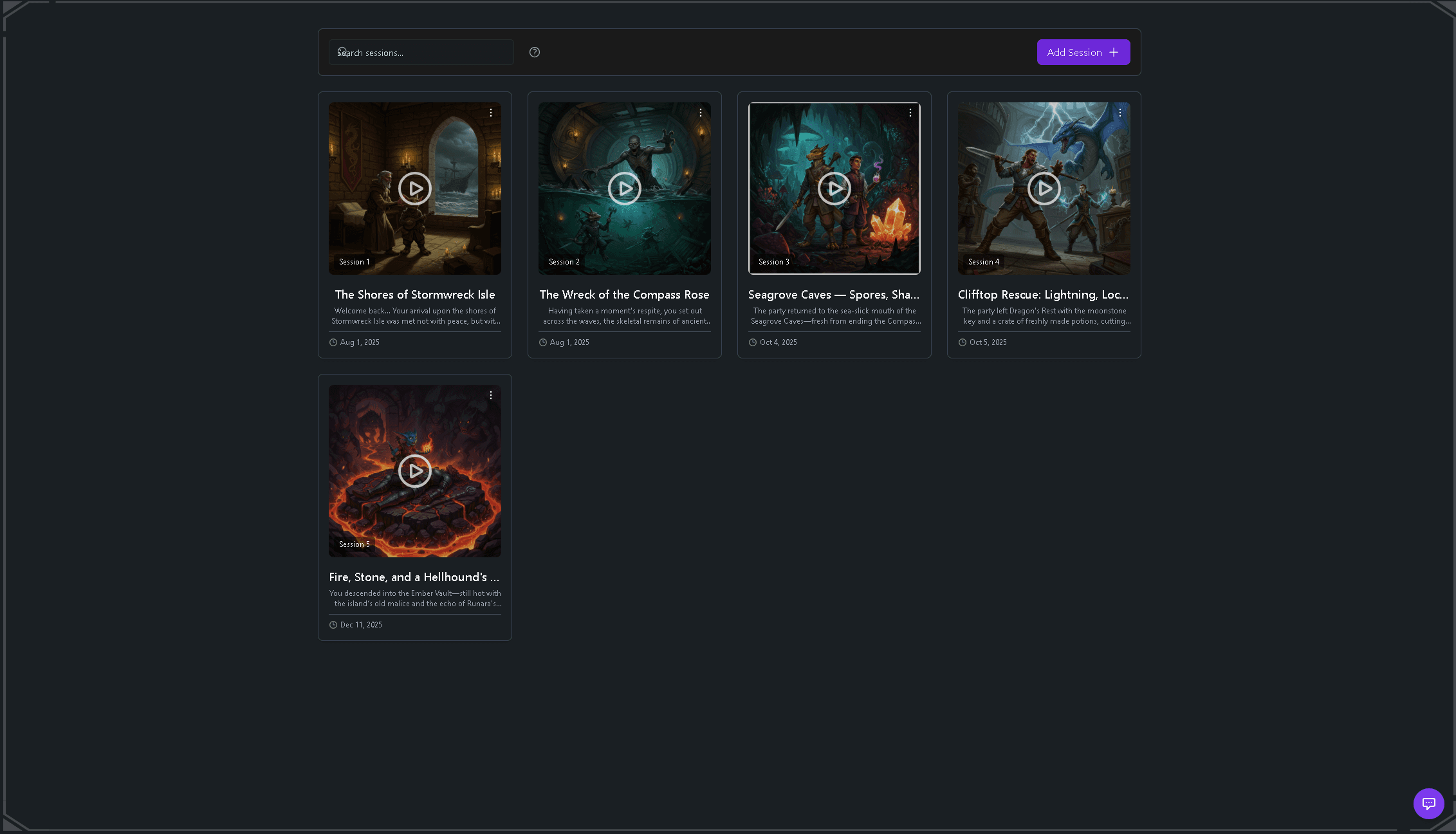
The audio uploads into your Tavern Scribe campaign automatically, landing on the session it belongs to. From there it's the same pipeline as any other upload: if you want it turned into a written recap, an event timeline, and campaign updates instead of just sitting there as a sound file, see how to summarize a D&D session from audio for what that processing step actually produces.
Can I control which channels or settings the bot uses?
Yes — recording behavior is configured per campaign on the same Discord Integration settings page, not left as one global default:
| Setting | What it does |
|---|---|
| Recordable Voice Channels | Restrict the bot to specific voice channels. Leave all unchecked and it can record in any voice channel on the server. |
| Default Scribe Level | Set a default AI processing tier for new recordings. |
| Auto-process after recording | Once a default tier is set, recordings can process automatically instead of waiting for someone to kick it off by hand. |
| Video recording | A separate toggle if your table streams video and wants that captured too. |
If your group plays on a shared server with other tables or off-topic voice channels, the channel restriction is the setting worth configuring first — it keeps the bot out of channels that have nothing to do with your game.
Do I need to tell my players I'm recording?
Yes, and it's worth doing out loud, not just assuming everyone read the settings page. Recording a conversation without telling the people in it is a bad look even when the tool doing it is well-behaved — say "hey, I'm turning on the recorder" before session, the same way you'd mention it for a phone on the table. Most tables say yes immediately, because everyone wants the recap too.
What if my table doesn't talk over Discord voice?
The bot only helps if your voice happens in a Discord channel. If your table plays in person, or talks over a different platform, how to write a D&D session recap covers the manual version of the same end goal, and uploading any audio or video file you already have — a phone recording, a stream capture — works the same way the Discord recording does once it's in your campaign.
FAQ
Do I need to be a server admin to add the bot?
You need permission to add bots to the server, which is usually bundled with the "Manage Server" permission most DMs already have on their own table's server. You do not need to be the server owner.
Does the bot record text chat, or just voice?
Just voice. /record start captures the voice channel audio; it does not log or store your Discord text messages.
Is recording a session on Discord free?
Adding the bot and recording is part of the Tavern Scribe workspace, which is free. Turning that recording into an AI-generated recap uses silver, the metered AI currency — your first campaign starts with 100 free silver, so your first recap costs nothing.
Can I stop the bot from recording certain voice channels?
Yes. The Recordable Voice Channels setting on the Discord Integration page restricts the bot to only the channels you check. Leave it unset and it can record any voice channel on the server.
Does this work for games other than D&D?
Yes. Tavern Scribe is system-agnostic — the same recording and processing pipeline works for D&D, Pathfinder, Daggerheart, Call of Cthulhu, and homebrew systems.
Start free, your first campaign comes with 100 silver for the AI parts: create your campaign.
Drafted with AI by the Tavern Scribe team and reviewed by a person. Last reviewed 2026-11-12.
Tags: Session Recording, Dnd Tools, Session Notes, Dungeon Master Tips, Dungeons And Dragons
